How to list a product
Follow these steps to create a listing on Boxorn. Each step includes a screenshot of the upload page so you know exactly what to do.
Get approved as a seller
Only approved sellers can publish listings. Sign in, open Become a Seller, submit a short application, and wait for admin approval. You will receive access to the upload form once approved.
Apply to become a sellerOpen the upload page
After signing in, click Upload Your Product in the top menu (or go to Add Product). You will see the form on the left and a live preview on the right.
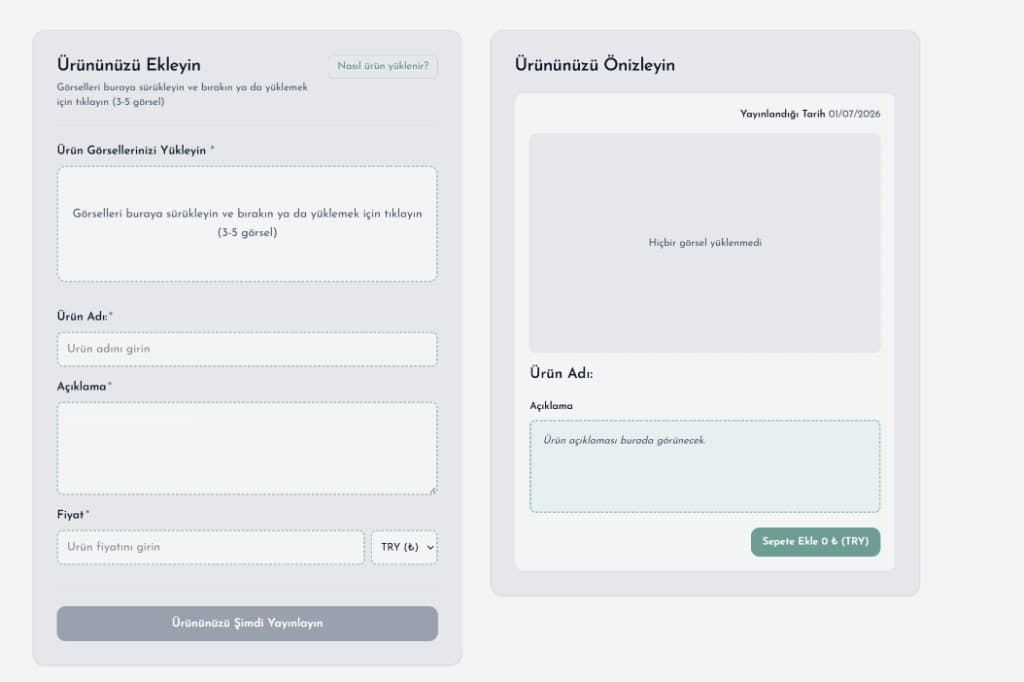
The upload form and live preview side by side. Upload 1 product photo
Drag an image into the upload area or click to browse. Add one clear photo. That image becomes the cover photo shown in the shop.
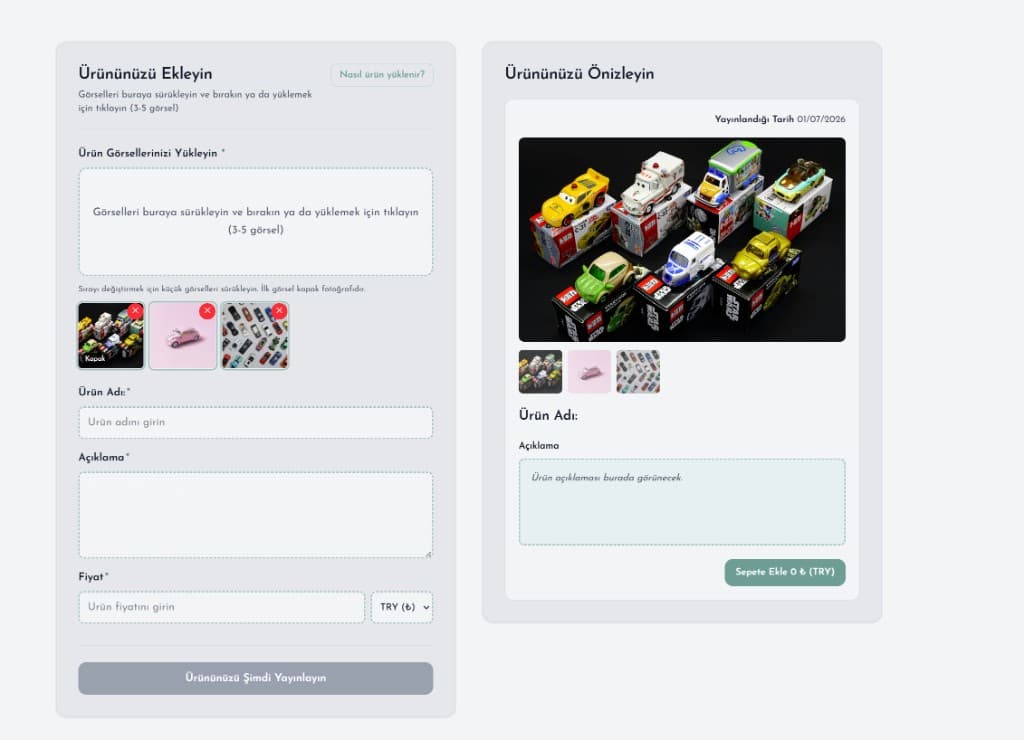
Upload area and image thumbnails with cover badge on the first photo. Enter name, description, and price
Fill in the product name and a detailed description. Set your price and currency. Complete any extra fields your admin has enabled (brand, scale, condition, and so on). Required fields are marked with an asterisk (*).
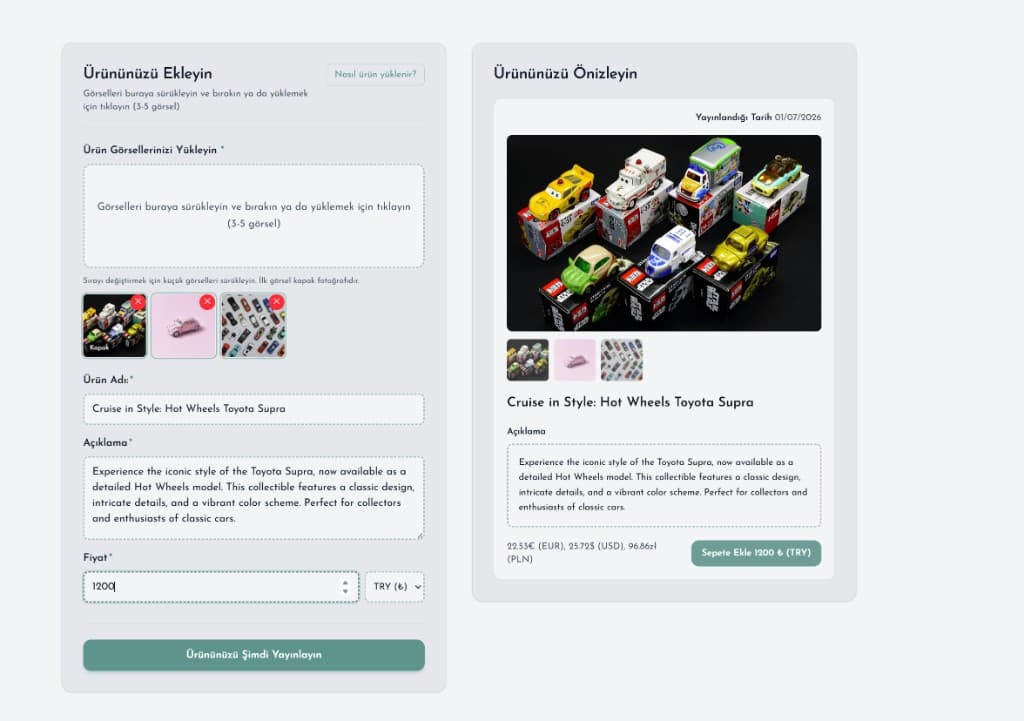
Name, description, price, and optional detail fields. Check the preview panel
Watch the right-hand preview update as you type. It shows how buyers will see your title, photos, description, price, and Add to Cart button. Fix anything that looks wrong before publishing.
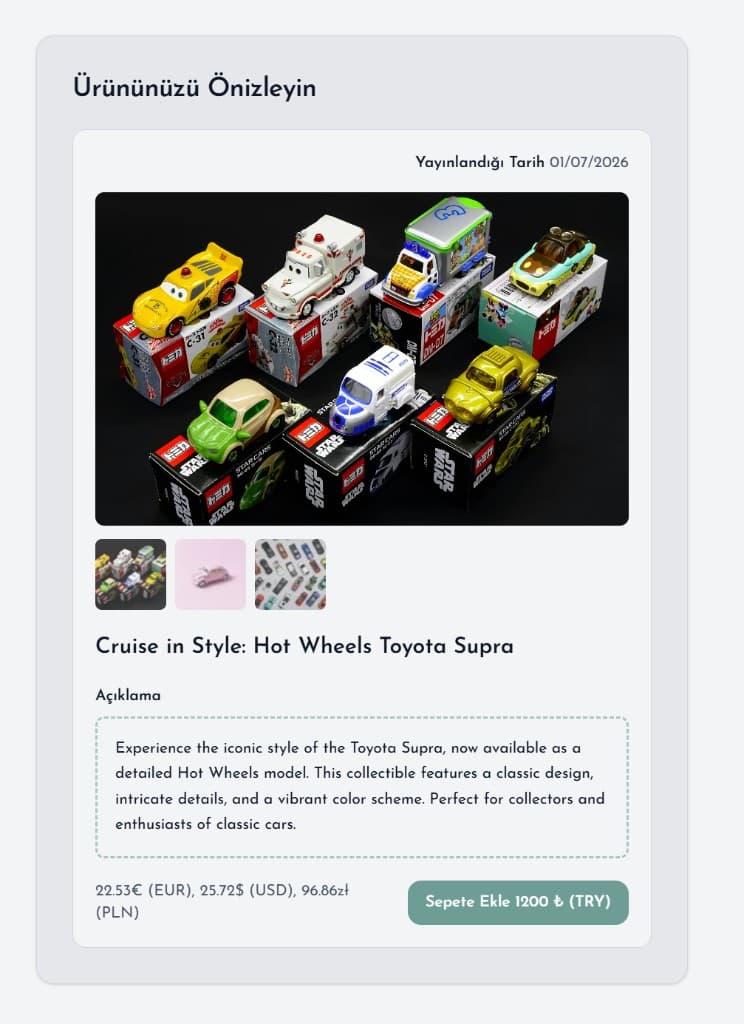
Preview panel mirrors the final product page layout. Publish and wait for approval
When every required field is complete, click Publish Your Product Now. Keep this page open while your listing uploads. When finished, you will see a success message — our team reviews new listings before they go live in the shop.
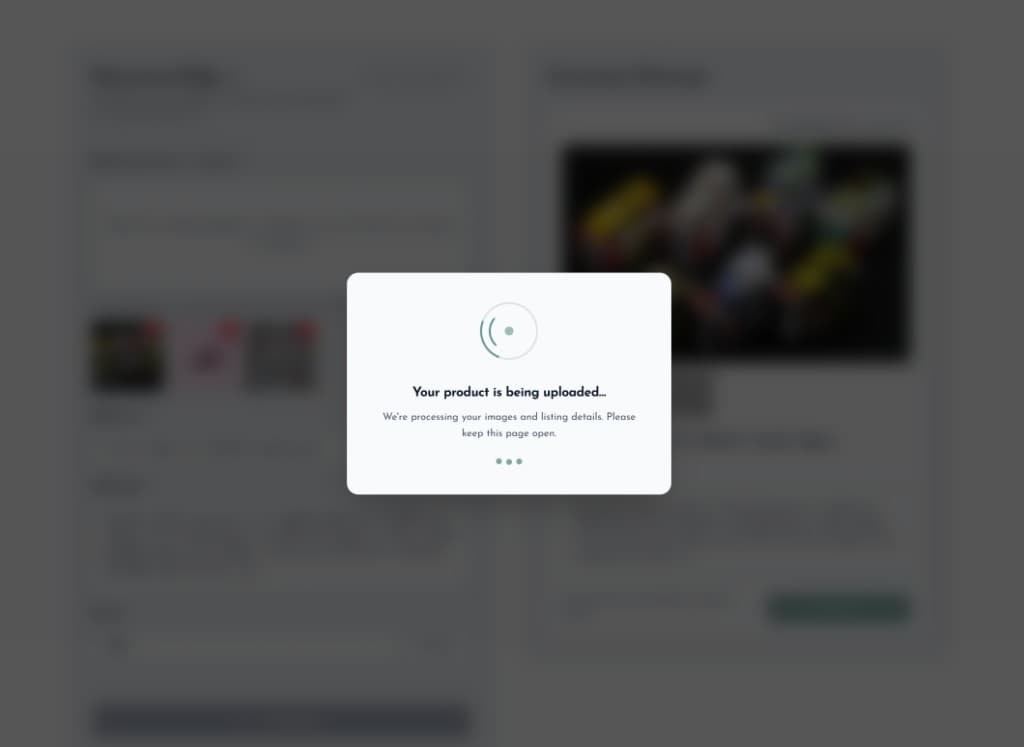
After you click publish, your images and listing details are processed. 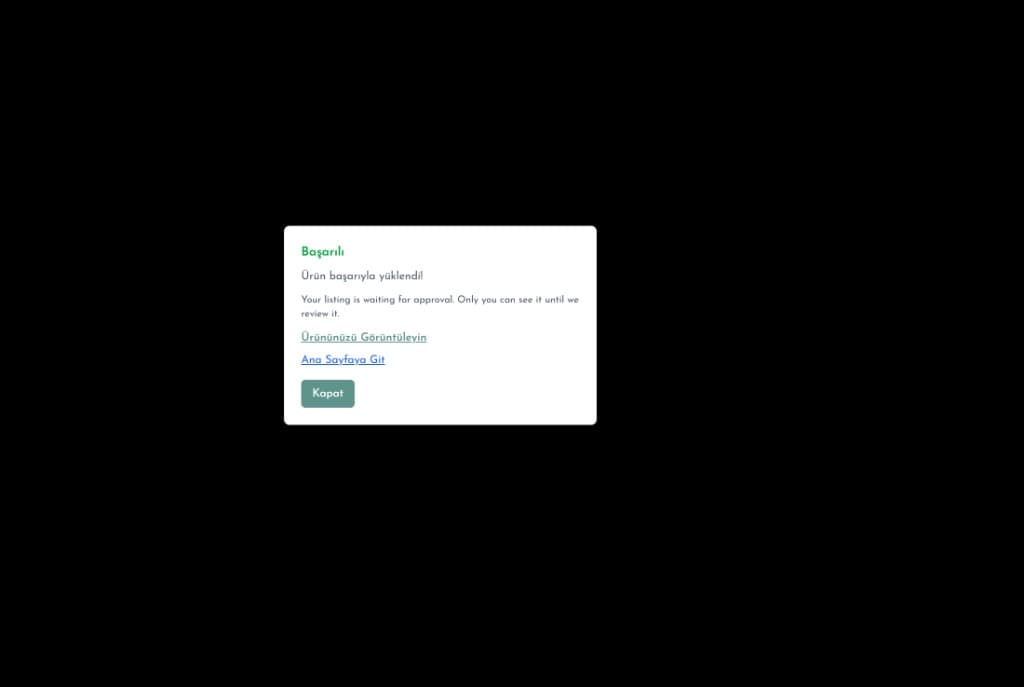
Only you can see the listing until we approve it.